How to change your Flutterwave password
Updated 4 months ago
To change the password to your Flutterwave account:
Log in to your Flutterwave dashboard and navigate to Settings
Click 'Profile'.
The following page shows you a portion where you can change your password.
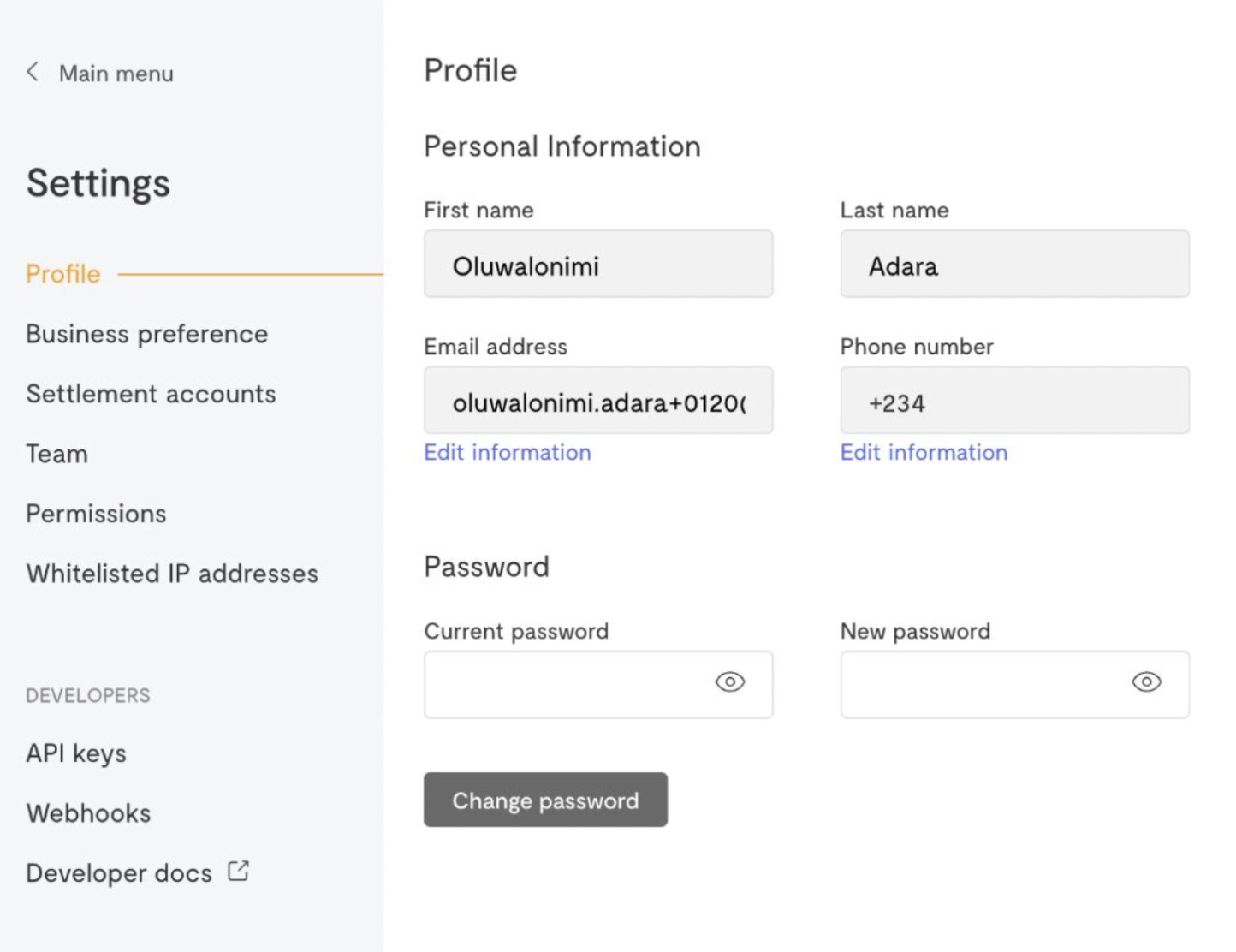
Enter your current password and your proposed new password and click the 'Change password' button. You should be redirected to the login page to login with your new password.
You will receive an email confirming that you have successfully changed your password.
Forgot your password?
If you can't remember your password, simply click on the 'Forgot your password?' link on the login page to get a new one.
Enter the email address used to create your Flutterwave account. You will receive an email with a link to reset your password.
Note: Check your Spam or Promotions folder if you don't receive the reset email in your Primary inbox.
We'd like to hear from you
Suggest the type of support articles you'd like to see
Still need help?
Get in touch if you have more questions that haven’t been answered here